
Enforcement and the ways out
The three focus policies, the five documented ways out of a locked session, and what to do if a build ever locks you out.
from README.md at build time
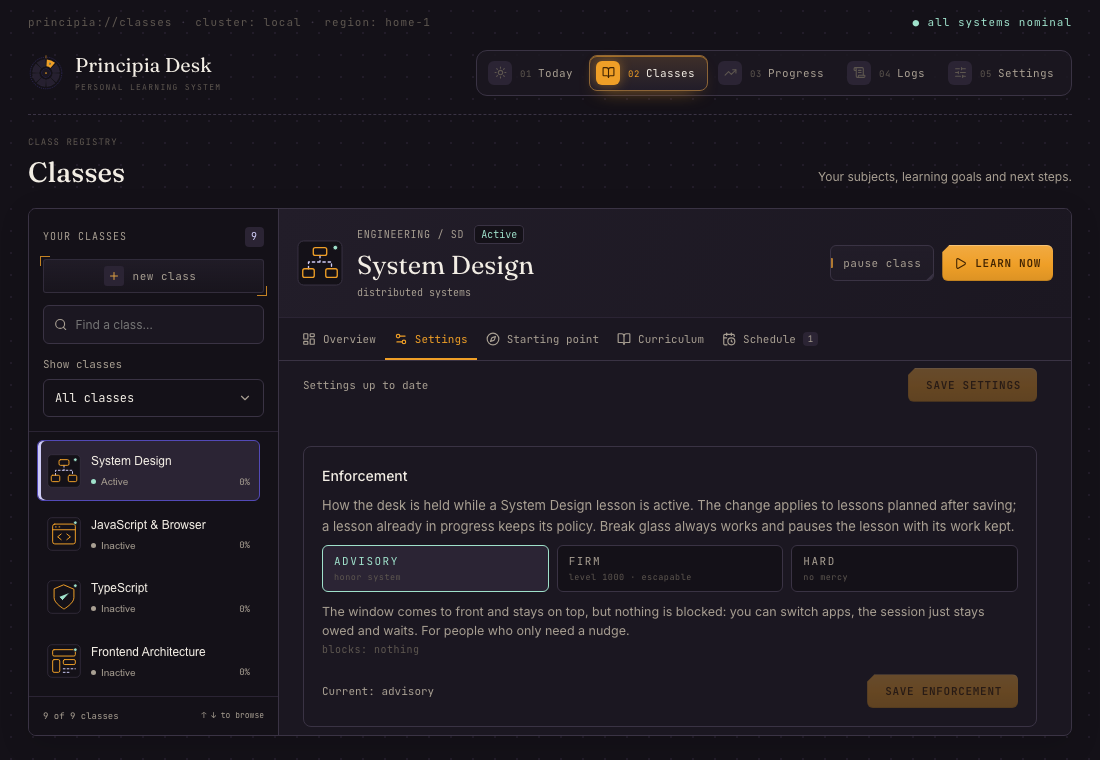
Each class carries a focus policy: advisory (the window comes to front, nothing is blocked), focused (full screen, always on top, focus snaps back every 300 ms, other displays sealed, media paused; switching away is useless but nothing at the system level is disabled) or strict (also blocks application switching, Force Quit, logout and shutdown while locked). The system-level part of strict is what the platform lets an application do: macOS lets the desk hide the Dock and disable Cmd+Tab, Force Quit, logout and shutdown; Windows and Linux do not hand that to an application, so there strict holds the desk the way focused does and the ways out below are the same. A native focus coordinator admits one focused or strict session at a time, engages the kiosk when it activates, releases it on completion, skip or the escape hatch, and re-engages after a restart. Starting another class while a focused session holds the desk is refused; the focused session cannot be paused from the lesson.
Ways out of a locked session
Strict mode blocks application switching, Force Quit and logout where the platform allows it, so it must never be the only thing standing between you and your own machine. Five ways out, on every platform, in the order you would reach for them:
Finish the check.
Break glass. A dim link reveals a long phrase rendered as non-copyable SVG (paste disabled). Typing it pauses the focused class lesson with its work kept and releases the lock; three wrong attempts lock the input for 60 seconds.
The recovery console. Press Control + Option + Shift + U (Ctrl + Alt + Shift + U on Linux and Windows). A small console opens above every window, a locked desk included; the combination is registered with the system, not the page, so a blank or frozen desk cannot swallow it. Four commands, typed in order, end the session:
# Type What happens 1 unlockReports the desk's state, says what releasing will do and issues a six-character challenge code (valid for five minutes). 2 confirm <code>Type the code back. It proves a person is at the keyboard; a wrong code keeps the challenge, an expired one starts over. 3 phrase <your escape phrase>The break-glass phrase from setup, exactly as written. Three wrong attempts lock this step for 60 seconds. 4 releasePauses the session with its work intact, breaks the streak, drops the lock and closes the console. statusshows where you are in the sequence,cancelstarts it over,close(or Esc) leaves the console with the desk untouched. Nothing changes until the fourth command. If the console itself cannot appear, press the combination five times within ten seconds and the lock releases on its own. The same steps are shown in Settings › Recovery, with a walkthrough you can replay.The combination is one registration, named per platform by the desk itself: macOS calls it Control + Option + Shift + U (a system hot key, no permission needed, works over full-screen apps and on every Space); Windows and Linux call it Ctrl + Alt + Shift + U. On Windows another program already holding the combination makes registration fail; on Linux it needs X11, since Wayland desktops do not hand global shortcuts to applications. Settings › Recovery shows whether the system took it; when it did not, the release token and the escape hatch still stand.
A release token. Create a file or folder named
principia-unlockin any of these places and the lock releases within a second:- your home directory (
touch ~/principia-unlock), - the temporary directory (
/tmpon macOS and Linux,%TEMP%on Windows), - the root of any mounted volume: a USB stick, an external disk, a mounted share (
/Volumeson macOS;/media,/run/mediaand/mnton Linux; every drive letter from D: on Windows).
The volume rule is the one that needs no terminal and no second machine: prepare a stick once, keep it near the desk, and plug it in. While a token exists the kiosk also refuses to engage at all, so a machine that boots with the stick in stays free. Delete the token to re-arm.
- your home directory (
The dead man's switch. A lock releases itself after three hours regardless of what the app believes. No lesson runs that long; a lock still standing is a stuck process, and it lets go.
A force shutdown alone does not end a session: an active focused session reopens at its saved position on the next launch. Boot with the release token in place instead.
Recovery (if a broken build ever locks you out)
The kiosk refuses to engage until the webview reports ready (white-screen guard), so a dead frontend cannot hold a lock. If you are ever stuck anyway:
- Open the recovery console with Control + Option + Shift + U and walk the four steps above; or press the combination five times in ten seconds if no console appears.
- Plug in the release stick described above, or create the token and stop the desk's own scheduler from another machine or another session:
# macOS: the launch agent
touch ~/principia-unlock
launchctl bootout gui/$(id -u) ~/Library/LaunchAgents/com.darkmatter.principia-desk.plist
rm -f ~/Library/LaunchAgents/com.darkmatter.principia-desk.plist
# Linux: the systemd user timer
touch ~/principia-unlock
systemctl --user disable --now principia-desk.timer
# Windows: the Task Scheduler entry New-Item -ItemType File "$HOME\principia-unlock" schtasks /Delete /TN "Principia Desk" /F - A session that starts nothing. macOS Safe Mode (Apple Silicon: hold power → pick disk → hold Shift) loads no third-party launch agents; Windows Safe Mode runs no scheduled tasks; a Linux console session (Ctrl+Alt+F3) has no desktop for the window to hold. Run the commands above there, reboot.
- From outside the system. macOS Recovery Mode Terminal:
rm "/Volumes/Macintosh HD/Users/<you>/Library/LaunchAgents/com.darkmatter.principia-desk.plist"andtouch "/Volumes/Macintosh HD/Users/<you>/principia-unlock"; a live USB on Linux or Windows: the same token file in the home folder of the mounted disk. Then reboot.
Nothing here depends on the main window being healthy: the console is its own window on a system-wide shortcut, the token is checked by the same loop that holds focus, and the dead man's switch fires without any input at all.